How to Backup GB WhatsApp Chats: The Complete Step-by-Step Guide
Losing your chat history, media files, and important voice notes can be a major hassle, especially when using modified instant messaging applications. gb whatsapp actualizado 2026 offers a vast array of extra features such as custom themes, enhanced privacy controls, automated replies, and large file sharing capabilities that make it extremely popular among Android power users. However, because GB WhatsApp is a third-party application, backing up your data requires a specialized approach.
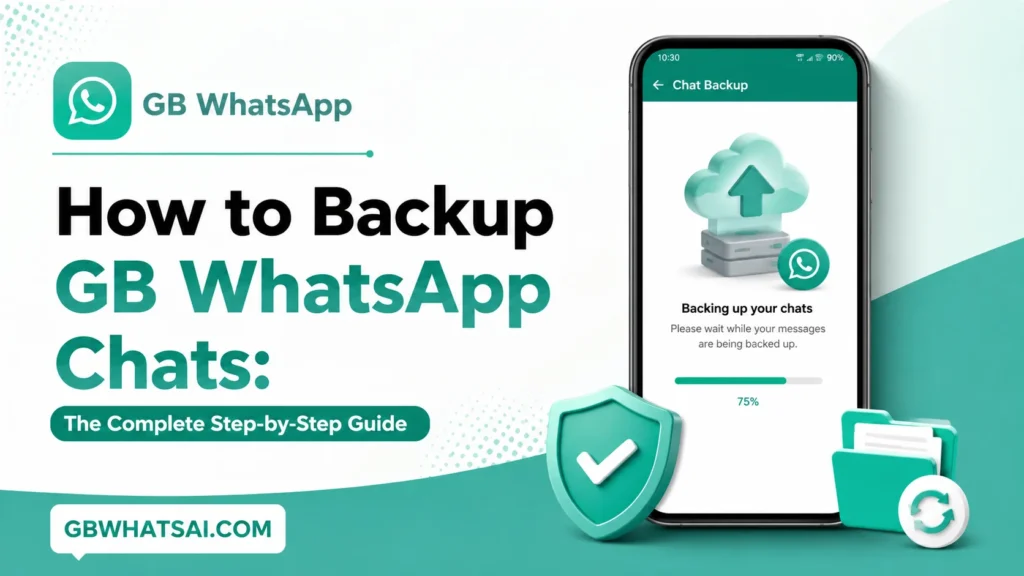
Standard WhatsApp relies heavily on integrated cloud backup options. gb whatsapp última versión apk, on the other hand, handles data storage slightly differently. Attempting a direct cloud sync on a modified application often fails or leads to errors because modified apps do not hold official API authorizations.
Understanding How GB WhatsApp Backups Work
To prevent accidental data loss, it is vital to understand the key differences between official app storage and third-party modification storage.
- Local Storage vs. Cloud Syncing: Official WhatsApp saves an encrypted local copy to your internal storage every night and syncs that copy directly to cloud storage. GB WhatsApp focuses primary backup operations on local storage within your device’s file manager, as cloud services block direct authorization requests from modified package names for security reasons.
- Key Folder Paths: On modern Android versions, application files reside in specific directories. Legacy Android paths use
Internal Storage > GBWhatsApp, while modern Android paths useInternal Storage > Android > media > com.gbwhatsapp > GBWhatsApp.
Within these master directories, your data resides across three critical folders:
- Databases: Contains your encrypted message history files (such as
msgstore.db.crypt14). - Media: Houses all images, videos, voice notes, stickers, audio files, and documents.
- Backups: Stores system configurations, user settings, and app customizations.
Method 1: Performing a Complete Local Backup in GB WhatsApp
Creating a full local backup directly on your device is the fastest and most reliable way to secure your messages.
- Launch GB WhatsApp on your phone.
- Tap the three vertical dots located in the top-right corner of the home screen.
- Select GB Settings or navigate to standard Settings.
- Scroll down and select Chats.
- Tap on Chat Backup.
- Tap the large green BACK UP button.
- Wait until the progress bar reaches 100%. The app will create a brand-new encrypted database file inside your internal storage.
Method 2: Securing Your Backup Files Manually via File Manager
A local backup made within the app still relies on your device remaining functional. If your phone gets damaged or factory-reset, local files can be lost. Manual file duplication protects you against hardware failures.
- Open your device’s default File Manager app.
- Navigate to Internal Storage.
- Locate your GB WhatsApp folder:
- Search for
Android > media > com.gbwhatsapp. - If not present, look directly in the root directory for
GBWhatsApp.
- Search for
- Long-press the
com.gbwhatsappfolder (or theGBWhatsAppmain directory) and select Copy or Compress to Zip. - Paste or transfer this folder to a safe location, such as:
- A microSD card inserted in the phone.
- A personal computer via USB cable.
- An external flash drive using an OTG adapter.
- Your personal cloud account as a standalone ZIP archive.
Method 3: How to Backup GB WhatsApp Data to Cloud Storage
Because gb whatsapp estilo iphone cannot sign into Google services directly due to safety policies, you can use a simple manual transfer method to move your chat history into cloud storage.
- Open GB WhatsApp and create a local backup (Settings > Chats > Chat Backup).
- Open your File Manager and navigate to
Android > media > com.gbwhatsapp > GBWhatsApp > Databases. - Copy the latest database file (such as
msgstore.db.crypt14). - Create a target folder path:
Android > media > com.whatsapp > WhatsApp > Databases. - Paste the copied database file into this new Databases folder.
- Install the official WhatsApp app, register using the exact same phone number, and complete SMS verification.
- When prompted, tap Restore. The official app will detect the local backup file you moved.
- Once restored, go to official WhatsApp Settings > Chats > Chat Backup > Back up to Cloud and initiate a manual upload.
How to Restore GB WhatsApp Backup to a New Phone
Transferring your chat history from an old phone to a brand-new smartphone requires precision. Here is the full process:
- Create the Master Backup on the Old Phone: Launch GB WhatsApp on your old phone, go to Settings > Chats > Chat Backup, and tap BACK UP. Ensure the process finishes completely.
- Locate and Copy the Backup Folder: Open your File Manager and locate the
com.gbwhatsappfolder (found inInternal Storage > Android > media). Copy this entire folder to your PC, SD card, or transfer it wirelessly to your new device. - Prepare the New Phone Directory: Install GB WhatsApp on your new phone, but do not open or register it yet. Create the directory path
Android > media > com.gbwhatsappusing your new phone’s File Manager. - Paste Your Backup Data: Move the
com.gbwhatsappfolder you backed up from your old phone intoInternal Storage > Android > media > com.gbwhatsappon the new phone. - Verify Phone Number and Restore: Open GB WhatsApp on the new phone, enter your phone number, and complete verification. The app will search local storage, detect your backup, and display a prompt. Tap Restore and wait for your messages and media to load.
Best Practices to Avoid Data Loss
- Perform Daily Manual Backups: Set a daily calendar reminder to tap Chat Backup inside GB WhatsApp settings.
- Keep Offline Copies: Store a monthly copy of your Databases folder on a cloud drive or computer.
- Backup Before App Updates: Always execute a full chat backup before installing an update or APK file to avoid database corruption.
- Manage Internal Storage: Ensure your device has at least 2 to 3 GB of free space. Insufficient storage can freeze local backup processes and corrupt existing message databases.
Troubleshooting Common Backup & Restore Errors
1. GB WhatsApp Backup Stuck at 0% or Failing
- Cause: Insufficient device storage or corrupted cached files.
- Solution: Clear the app cache by going to Phone Settings > Apps > GB WhatsApp > Clear Cache (do not tap Clear Data). Delete unneeded media files to free up disk space. Restart your device and try again.
2. “No Backup Found” Prompt During Reinstallation
- Cause: The backup folder is located in the wrong file path directory.
- Solution: Verify your operating system version. Devices running modern Android versions expect backup files inside
Internal Storage > Android > media > com.gbwhatsapp > GBWhatsApp > Databases. If your folder is in the root directory, move it into theAndroid/mediapath.
3. Database Version Incompatibility
- Cause: Attempting to restore a backup created on a significantly newer version of GB WhatsApp into an outdated version.
- Solution: Always download and install the latest build of GB WhatsApp before verifying your number and running the restore process.
Frequently Asked Questions (FAQs)
Q1: Can I back up GB WhatsApp directly to Google Drive with one click?
No. Because gb whatsapp 26.50 is a modified application, Google’s services block direct authentication requests. To sync your data to cloud storage, you must move your local database to the official application or save copy archives to your cloud drive manually.
Q2: Will backing up GB WhatsApp save my custom themes and settings?
Yes. Running a full backup saves your message logs, conversation media, and custom app preferences stored in the app configuration folders.
Q3: How often should I create manual backups?
It is best to perform a quick local backup daily, alongside a weekly or monthly off-device backup (copied to a PC or secondary storage).
Q4: Is it possible to merge chats from two different backup files?
No. Restoring a database file replaces existing messaging logs with the content of that specific file. You cannot combine two separate database files into one.
Final Summary Checklist for Securing Your Data
- Perform an in-app local backup (Settings > Chats > Chat Backup).
- Locate the
com.gbwhatsappfolder in your File Manager. - Copy the folder to external storage or a secondary device.
- Confirm correct file path locations before restoring on a new device.
By following these procedures, your chat histories, media files, and attachments will remain safe, secure, and fully recoverable across devices.