GB WhatsApp Stuck on Loading Screen After Update? 7 Ways to Fix It
Have you ever updated GB WhatsApp, opened it to check your messages, and then found yourself staring at the same loading screen? You wait a few seconds, maybe close the app and open it again, but nothing changes. It can be especially frustrating when you need to reply to someone or access an important conversation.
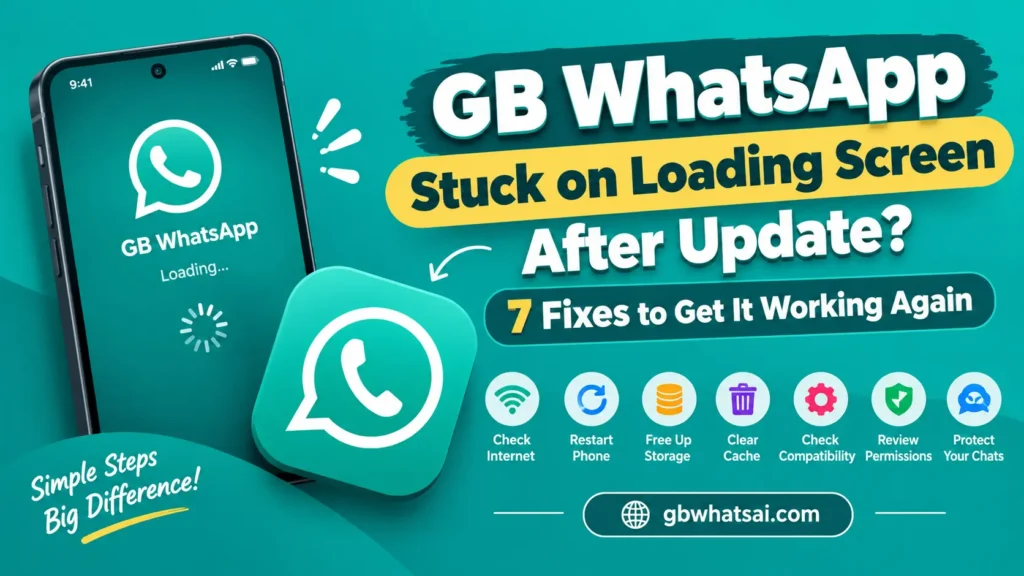
The good news is that a loading screen does not always mean your chats are gone or your phone has a serious problem. Sometimes, the cause is a weak internet connection, limited storage, temporary app files, or a compatibility issue with the new version.
In this guide, we will walk through seven things you can check when GB WhatsApp gets stuck on loading after an update. Start with the simple solutions first, and avoid steps that could put your chat history at risk.
Why Is GB WhatsApp Stuck on the Loading Screen After an Update?
There is no single cause for this problem. The reason depends on your phone, the version you installed, and what happens when you try to open the app.
Here are some common possibilities:
- Temporary app glitch: The app may not have started correctly after the update.
- Internet connection problems: The app may be waiting for a connection or online service.
- Low storage space: Your phone may not have enough free space to complete certain tasks.
- Corrupted cache files: Temporary files may be causing unexpected behavior.
- Compatibility issues: The installed version may not work properly with your Android version or device.
- Incomplete installation: The update may not have installed correctly.
- Third-party app limitations: Because GB WhatsApp is an unofficial modification, changes to WhatsApp services may affect its ability to connect.
The important thing is not to assume that every loading problem needs a reinstall. In many cases, you can investigate the cause without deleting anything.
1. Check Your Internet Connection First
This might sound too simple, but checking your connection is a sensible first step. If your internet is unstable, an app that depends on online services may struggle to load or connect.
Try opening a website in your phone’s browser. If the page takes too long to load or does not open, your connection may be the problem rather than the app itself.
Here is what you can do:
- Switch between Wi-Fi and mobile data, if available.
- Move to an area with a stronger signal.
- Turn Airplane Mode on briefly, then turn it off.
- Try opening another online application.
- Restart your router if other devices on the same Wi-Fi network also have problems.
Now open GB WhatsApp again and give it a little time.
If other apps work normally but GB WhatsApp remains stuck on the same screen, move to the next step. The issue may be related to the app itself rather than your connection.
2. Restart Your Phone
Sometimes an application gets stuck because of a temporary problem with Android or another background process. A simple restart can clear that temporary state.
Close the app if possible, restart your phone using its normal power menu, and wait for Android to finish starting up. Then try opening GB WhatsApp again.
If your phone was running several applications at once, restarting may also free up some temporary system resources.
This is a good first troubleshooting step because it does not normally erase your installed applications or personal files.
However, if the loading screen appears every time you open the app, restarting repeatedly probably will not solve the underlying issue. Continue with the other checks instead of spending time rebooting your phone again and again.
3. Check Your Phone’s Available Storage
An update can require additional space for temporary files and app operations. If your phone is nearly full, some applications may become slow, stop responding, or fail to complete certain tasks.
To check your storage:
- Open your phone’s Settings.
- Find Storage or Device Care, depending on your Android phone.
- Review how much free space remains.
- Remove unnecessary downloads or files you no longer need.
- Move personal photos and videos only after confirming that you have a safe copy.
You do not need to delete important conversations or personal media just to test whether storage is the problem.
After freeing some space, restart the phone and try opening the app again.
If you already have plenty of free storage and the loading screen has not changed, low storage is less likely to be the cause.
4. Clear GB WhatsApp Cache Without Deleting App Data
Temporary cache files help applications load certain content more quickly. Occasionally, these files can contribute to unexpected behavior, although clearing the cache will not fix every problem.
If you want to try this step, make sure you select Clear Cache, not Clear Data or Clear Storage.
The usual process on Android is:
- Open Settings.
- Select Apps or Applications.
- Find GB WhatsApp in the app list.
- Open its Storage or Storage Usage section.
- Tap Clear Cache, if available.
- Return to the home screen and open the app again.
The exact menu names may differ between Android devices.
Clearing the cache is generally less disruptive than clearing app data, but it is not a guarantee that your information is safe in every situation. Avoid the Clear Data option while troubleshooting if you have not verified your backup.
If the app still gets stuck after clearing the cache, do not keep repeating the same step. Check compatibility and installation details next.
5. Check Whether the Updated Version Is Compatible With Your Phone
If GB WhatsApp started getting stuck immediately after an update, compatibility is worth investigating.
The new build may contain a bug, may not support your device properly, or may have installed incompletely. It is also possible that the timing was coincidental and another problem caused the loading screen.
Start by checking your Android version in Settings under About Phone or Software Information. Then review the version details and requirements provided by the source from which you obtained the APK.
Keep these points in mind:
- A higher version number does not automatically mean an app is more reliable.
- An APK advertised as the latest release may not be authentic.
- A version that works on one phone may behave differently on another.
- Unofficial modifications may stop connecting when WhatsApp changes its services.
Avoid downloading several different APK files in the hope that one will work. Files from unfamiliar websites can contain unwanted software or create additional problems.
If the installed version cannot be verified or appears incompatible, consider using the official WhatsApp application instead.
6. Check Whether Android Is Restricting the App
Android includes battery and background-activity controls that can limit how applications behave. These settings are more commonly associated with delayed notifications or background connectivity, but they are worth reviewing if the loading problem seems connected to background restrictions.
Open Settings, select Apps, and find the relevant battery and data settings for the application.
Check whether:
- Background data is restricted.
- Data Saver is preventing background access.
- Battery settings are limiting background activity.
- The application has been disabled by mistake.
Only change settings that are relevant to the problem, and remember that menu names vary between phone manufacturers.
Do not grant unnecessary permissions or disable Android security protections just to make an unofficial app run.
If the app remains stuck on its initial screen even with a working internet connection and sufficient storage, a compatibility or application-level problem becomes more likely.
7. Protect Your Chats Before Reinstalling the App
When the previous steps do not work, reinstalling may seem like the easiest answer. But this is the point where you should slow down.
Uninstalling gbwhatsapp última versión apk can remove local app data. If your chats are not backed up properly, you may lose conversations, photos, or other information stored on your phone.
Before considering reinstallation, ask yourself three questions:
- Do I have a usable backup?
Check whether you previously created a backup and whether you can access it. Do not assume that a backup exists simply because you remember seeing a backup option. - Can my chats actually be transferred?
Backups made by modified applications may not restore correctly in the official WhatsApp application. Check the supported migration instructions before changing apps. - Is the installation file trustworthy?
If the APK came from an unfamiliar source, downloading another version from a different unknown website may increase the risk rather than solve the problem.
If you cannot verify your backup, avoid clearing app data or uninstalling the app until you understand your options. Preserving important conversations is more valuable than rushing into another installation attempt.
For a more reliable long-term experience, consider switching to the official WhatsApp application and following its supported setup and migration process.
What If GB WhatsApp Is Still Stuck After Trying Everything?
If you have checked your connection, restarted your phone, freed up storage, cleared the cache, and reviewed compatibility, but the app still will not load, the problem may be beyond basic troubleshooting.
For example, the installed build could be broken, or the modified application may no longer work properly with WhatsApp services. Neither situation can necessarily be fixed through phone settings.
At this point, it is better to stop making random changes and protect your information.
Record the exact error message, note when the issue began, and check whether the problem started immediately after the update. These details can help you understand what changed.
If the app displays a message requiring the official version, follow the instructions provided by WhatsApp. Avoid tools or websites that promise guaranteed access, account recovery, or protection from restrictions.
How to Prevent the Same Loading Problem in the Future
You cannot prevent every software issue, but a few habits can make troubleshooting easier and reduce unnecessary risks.
Keep Enough Storage Available
Try not to fill your phone’s storage completely. Having free space makes it easier for Android and your applications to handle temporary files.
Back Up Important Information
Check your backup situation before changing application versions or uninstalling anything. Keep important personal media in a separate, trusted location when appropriate.
Be Careful With APK Downloads
Do not judge an application by its download count, website design, or version number alone. Verify the source and take Android security warnings seriously.
Avoid Installing Multiple Versions
Installing different builds without checking compatibility can create additional confusion and may introduce package conflicts.
Use Supported Applications
The official WhatsApp application receives support through established distribution channels. An unofficial modification cannot guarantee the same reliability, compatibility, or account protection.
Frequently Asked Questions
Why is GB WhatsApp stuck on loading after an update?
Possible causes include a temporary app glitch, insufficient storage, damaged cache files, an incomplete update, or compatibility problems. Check your connection first, restart your phone, and clear the cache if appropriate.
Will clearing the cache delete my GB WhatsApp chats?
Clearing the cache is generally different from clearing app data and normally does not remove chat history. However, avoid selecting Clear Data or Clear Storage unless you have checked your backup and understand the consequences.
Should I uninstall GB WhatsApp if it keeps loading?
Not immediately. First try the basic troubleshooting steps and confirm whether a usable backup exists. Uninstalling may remove locally stored information, and modified-app backups may not transfer successfully.
Can an outdated Android version cause the loading problem?
It can contribute to compatibility issues if the application requires software features that your device does not support. Check your Android version and the application’s documented requirements before drawing a conclusion.
Why does GB WhatsApp work on one phone but not another?
Phones can differ in Android versions, available storage, manufacturer-specific settings, and hardware compatibility. A particular app build may also contain bugs that affect only some devices.
Is GB WhatsApp safe if it gets stuck after an update?
A loading screen alone does not prove that an app is unsafe. However, because GB WhatsApp is an unofficial modification, its security and reliability depend on the particular build and source. Avoid installing unverified files or sharing account credentials.
Can I fix GB WhatsApp without losing my data?
You may be able to solve the problem by checking your connection, restarting your phone, freeing storage, or clearing the cache. No troubleshooting method guarantees success in every case, so protect your backup before taking more disruptive steps.
What should I do if GB WhatsApp asks me to install the official app?
Follow the instructions displayed by WhatsApp and use its official application if required. Avoid relying on unofficial tools that claim they can bypass the warning or guarantee that your account will continue working.
Final Thoughts
Seeing GBWhatsApp pro stuck on a loading screen after an update can be frustrating, especially when you are worried about losing your conversations. Start with the simple checks: test your internet connection, restart your phone, review available storage, and clear the cache if appropriate.
If those steps do not help, investigate compatibility and the source of the installed version before making bigger changes. Most importantly, do not clear app data or uninstall the application until you have considered how to protect your chats.
Sometimes the issue is not something you can fix through Android settings alone. If the modified app is no longer compatible or trustworthy, moving to the official WhatsApp application is the more reliable choice.
GB WhatsApp stuck on loading, GB WhatsApp not opening after update, GB WhatsApp loading problem, GB WhatsApp update error, GB WhatsApp keeps loading